Managing Repositories
Browsing
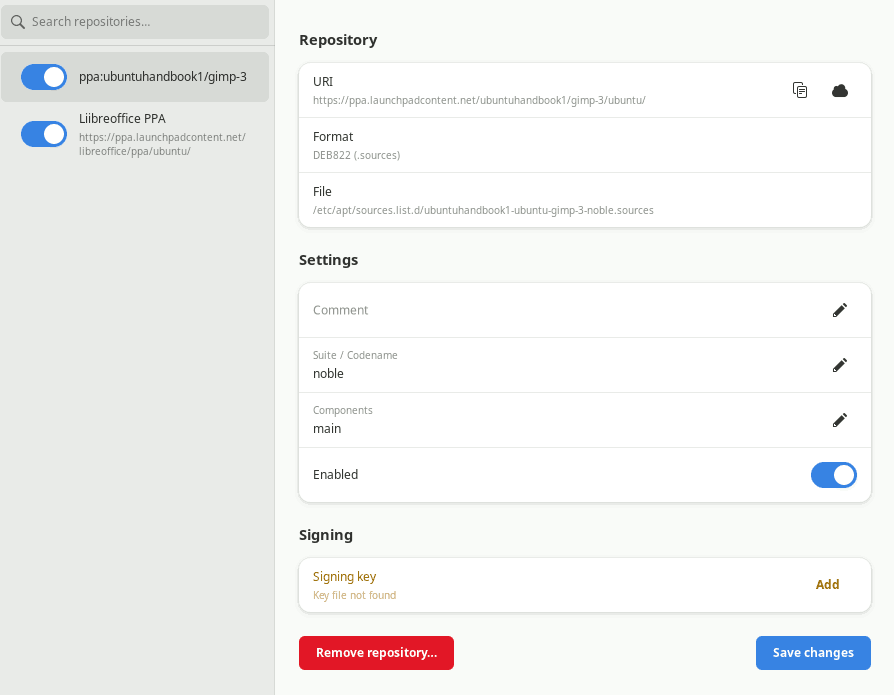
The left sidebar lists all third-party repositories found in /etc/apt/sources.list.d/. Click any row to open it in the detail pane. The search bar at the top filters by display name or URI.
Editing a repository
Select a repository to see its fields in the detail pane:
- Name / Description — a human-readable label stored as
X-Repolib-Name:in the.sourcesfile. See Annotations. - Suite — the Ubuntu codename or fixed suite name (e.g.
noble,stable). - Components — space-separated list (e.g.
main contrib non-free). - Enabled — toggle to enable or disable without deleting the file.
- Signing key — the GPG key used to verify packages: either a path to a keyring file or an inline PGP block embedded directly in the
.sourcesfile.
The detail pane also has two utility buttons at the top right:
- Copy URI — copies the repository's primary URI to the clipboard.
- Open in browser — opens the repository URI in your default web browser.
Click Save to write the changes. A polkit authentication dialog appears because writing to /etc/apt/sources.list.d/ requires root.
Legacy .list format
If a .list repository has no description, editing the Name field and saving converts it to DEB822 .sources format automatically. The old .list file is deleted and the new .sources file is written in a single polkit operation.
Adding a repository
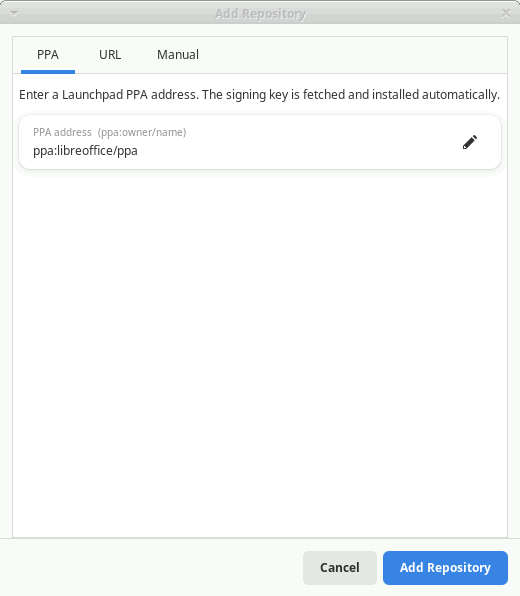
Open Repos → Add Repository…
PPA tab
Enter a Launchpad PPA address in ppa:owner/name form (e.g. ppa:libreoffice/ppa). repoman fetches the signing key from Launchpad automatically — no separate key URL is needed. Click Add Repository to install the repository and key in one polkit prompt.
URL tab
Paste a one-liner or a full DEB822 block directly from a project's installation instructions:
Types: deb
URIs: https://packages.example.com/ubuntu
Suites: noble
Components: main
Signed-By: /usr/share/keyrings/example.gpg
X-Repolib-Name: Example Project
If the source provides a GPG key URL, paste it in the GPG key URL field below the text area. repoman will download and install the key alongside the repository file.
Manual tab
Fill in individual fields:
| Field | Description |
|---|---|
| Repository URI | The base URL of the repository |
| Suite / Codename | The release name or fixed suite |
| Components | Space-separated (defaults to main) |
| Name / Description | Optional human-readable label |
| GPG key URL | URL to the signing key — auto-fills the key path |
| Signing key path | Where the key will be installed (/usr/share/keyrings/…) |
| Include source packages | Adds deb-src type |
| Enabled | Whether the repository is active on save |
When a key URL is provided, the signing key path is filled automatically based on the repository hostname. You can override it by clearing the key URL field and typing a path directly.
Click Add Repository. If a key URL was provided, the key is downloaded, verified, and written alongside the .sources file — both in a single polkit prompt.
Removing a repository
Single repository
With a repository selected, click Remove repository… at the bottom left of the detail pane. A confirmation dialog shows the filename that will be deleted. Confirm to proceed — a polkit prompt follows, then the row is removed from the sidebar.
Multiple repositories
Open Repos → Remove Multiple… to open a checklist of all repositories. Check any number, then click Remove N selected. One polkit prompt covers all deletions.
Use the Select disabled button in the bottom-left corner to automatically check all currently disabled repositories. It never deselects anything, so clicking it multiple times or after manually checking other rows is safe.
Signing keys
Every repository row in the detail pane has a Signing key section showing the current state:
| State | Display |
|---|---|
| No key configured | "No signing key configured" + Add button |
| Key file path configured | Filename + Edit button |
| Inline PGP key embedded | "Inline key" + Edit button |
| Key path set but file missing | "Key file not found" (warning style) + Add button |
Inline PGP keys
Repositories added by apt-add-repository or some PPAs embed the ASCII-armored key block directly inside the .sources file rather than referencing a separate keyring file. repoman displays these as "Inline key" and lets you view or replace the embedded key from the editor.
Adding a key
Click Add to open the key editor. Three ways to provide a key:
- Fetch from URL — enter a key URL and click Fetch. For PPA repositories, the key is retrieved automatically from Launchpad without a URL.
- Use existing file — browse to a
.gpg,.asc, or.pgpfile already on your system. - Paste — paste an ASCII-armored key block directly. repoman verifies it before saving.
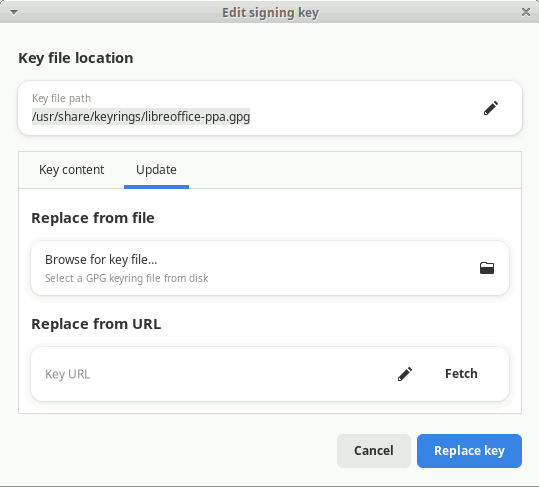
Editing a key
Click Edit to open the key editor in edit mode.
- Key content tab — shows the current key in ASCII-armored format. For inline keys, the full PGP block is shown. For file-based keys, the key is read from disk and displayed.
- Update tab — replace the key from a file, URL, or (for inline keys) by pasting a new key block.
Disabling all repositories
Repos → Disable All Third-Party Repos… sets Enabled: no on every repository in one polkit operation. This is useful before an Ubuntu upgrade to prevent APT from attempting to fetch packages from repos that may not be ready.
Re-enable them individually from the detail pane, or use the upgrade wizard after the upgrade completes.
Saving and restoring your configuration
Repos → Save state… exports all repositories to a .repoman file. Repos → Load state… restores them — on the same machine or a different one. When loading on a different Ubuntu release, repoman adapts suites automatically and bundles GPG keys so no manual key installation is needed.
Companion tools
The Tools menu includes shortcuts to system utilities that complement repository management:
| Menu item | What it opens | Requires |
|---|---|---|
Software Updater (Ctrl+R) |
update-manager — apply pending package updates |
update-manager |
| Software & Updates | software-properties-gtk — manage Ubuntu channels, PPAs, and driver sources |
software-properties-gtk |
| Install a .deb package… | gdebi — install a locally downloaded .deb file with dependency resolution |
gdebi |
If a tool is not installed, its menu item is greyed out automatically at startup.
See State Management for the full workflow.
Updating packages
Use Tools → Software Updater (or press Ctrl+R) to open Ubuntu's Software Updater, which handles apt update and package upgrades. If Software Updater is not installed, the menu item and shortcut are inactive.